
Image Describer
Use this image describer to turn any picture into a clear written description, short or detailed. 20 free generations a day, no sign-up.
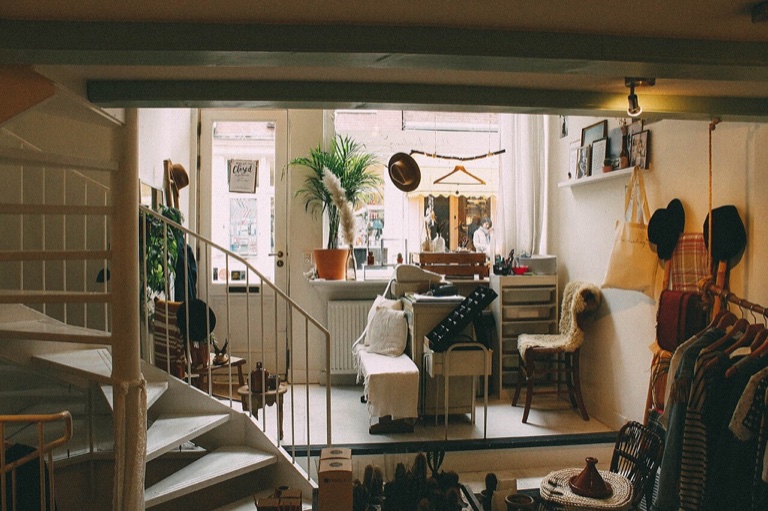
Image Description
ExampleA compact, lived-in studio is seen from an elevated angle, with a white spiral staircase filling the left foreground and leading to a small work and sitting area. Bright windows at the back bring in soft daylight, illuminating a potted palm, a desk, shelves, chairs, and a cushioned bench. On the right, coats and bags hang from hooks beside a narrow shelf, while books, plants, and household objects add detail throughout the room. Warm wood, cream walls, muted greens, and dark accents create a cozy, slightly eclectic feel. The gentle natural light and closely arranged furnishings give the space a calm, intimate mood.
What this image describer does
It reads one picture and writes the description for you.
This image describer looks at one picture and writes what it shows: the main subject, the setting, colors, lighting, mood and small details. You choose how long the text is and what it is for, then edit it in the box before you copy it.
Pick Short for a one or two sentence summary, Detailed for one paragraph, or In-depth for three or four paragraphs. Four uses change the voice: General, Accessibility, Product and Story. The description can come out in ten languages.
It describes people by what they wear and do, never by name. It is AI output, so read it against the picture before you publish it.
Made for
- Web editors
- Online sellers
- Writers
- Teachers
- Accessibility reviewers
- Curious viewers
Where an image describer helps
The Use row sets the voice. The Length row sets how much text you get.
General description
Covers the subject, setting, colors, lighting, mood and notable details. Use it to understand a picture, to sort a folder of files by what they show, or to put a scene into words for a friend.
For someone who cannot see it
The Accessibility use opens with the most important content, reads out visible text and places things on the left, right, foreground or background. Good for web pages, slides and documents where a picture needs words beside it.
Product listing text
The Product use writes what the item is, its materials, colors, shape, features and how it might be used, in a selling tone. It does not make up a brand or specs it cannot see, so add those yourself.
Story openings
The Story use sets the scene like the first lines of a chapter, staying with what is visible. Writers use it as a starting draft to rework in their own voice, or to describe a setting they only have a photo of.
Another language
Choose Spanish, Portuguese, French, German, Italian, Japanese, Korean, Chinese (Simplified) or Russian in the Output language list and the description is written in it. Useful when the page or the reader is not English.
Checking a picture quickly
Drop in a screenshot, a scan or a photo and read what the AI sees in one short paragraph. Handy when a file name tells you nothing and you need to know what is in it.
How to describe an image with the image describer
One image per run. Nothing to install.
- 1
Add your image
Upload a JPG, PNG, WebP or HEIC file, paste from the clipboard with Ctrl+V or Cmd+V, or enter an image URL. A URL works only when the image host lets other pages load it; otherwise save the picture and upload it.
- 2
Set Length and Use
Choose Short, Detailed or In-depth, then General, Accessibility, Product or Story. Pick an Output language if you need one besides English. Settings are read when you press the button.
- 3
Describe, edit, copy
Press Describe Image. The text appears beside a preview of your picture, in a box you can edit. Press Copy to take it with you, or Regenerate for a new version with the current settings. The text is not saved, so copy it before you leave the page.
More tools from Img to Prompt
- Image to PromptImage to prompt in one step: upload a picture and get text for Midjourney, Stable Diffusion, Flux, Nano Banana or GPT Image. 20 free generations a day, no sign-up.
- AI Image AnalyzerThis AI image analyzer reads your image for objects, text, colors, composition and mood. 20 free generations a day, no sign-up.
- Alt Text GeneratorUpload an image and get alt text that screen readers and search engines understand. 20 free generations a day, no sign-up.
- Describe This OutfitDescribe this outfit from a photo, piece by piece: colors, fabrics, fit and overall style. 20 free generations a day, no sign-up.
- Describe This CharacterDescribe this character from an anime, game or OC picture: a sheet, a written description or an art prompt. 20 free generations a day, no sign-up.