
AI Image Analyzer
This AI image analyzer reads your image for objects, text, colors, composition and mood. 20 free generations a day, no sign-up.
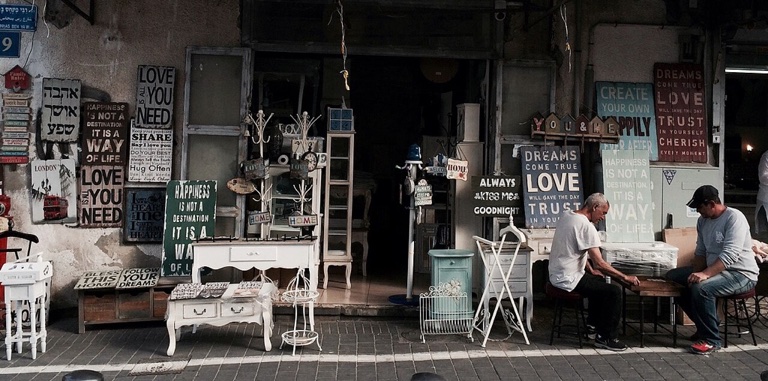
Image Analysis
ExampleSummary: - A street-side antiques and home-goods shop displays vintage furniture and signs, with two men seated at a table outside. Objects: - Mismatched chairs, small tables, stools, cabinets, and decorative metal pieces fill the storefront and sidewalk. - Numerous framed and unframed signs cover the back wall; several feature motivational phrases. - Two adult men sit facing each other at a table on the right, with the open, dim shop behind them. Text: - Clearly readable signs include “LOVE YOU NEED,” “HAPPINESS IS NOT A DESTINATION. IT IS A WAY OF LIFE,” “DREAMS COME TRUE,” “ALWAYS,” “GOODNIGHT,” and “CREATE YOUR OWN HAPPINESS.” - Smaller writing is visible throughout the signs but is not consistently legible. Colors: - The scene is dominated by weathered gray, brown, and black, with pale whites and muted teal accents. - The signs add scattered red, green, and blue details. Composition: - A wide, eye-level street view frames the storefront nearly edge to edge. - Layered signs and furniture create a dense foreground and backdrop; the seated men draw attention on the right. - Soft daylight illuminates the sidewalk and shopfront, while the interior remains shadowy. Mood: - The crowded, timeworn display feels eclectic and lived-in. - The men’s quiet conversation gives the scene an unhurried, everyday atmosphere.
AI image analyzer modes and what each returns
Pick the mode before you upload. Each one returns different labeled sections.
| Mode | Sections you get | Good for |
|---|---|---|
| Full analysis | Summary, objects, text, colors, composition, mood | A first look at any image |
| Objects & text | Objects with counts and positions, text quoted as written, one-line summary | Signs, labels, menus, busy scenes |
| Colors & composition | Dominant colors with approximate hex codes, framing, lighting, style | Designers and photographers |
| Quality check | Strengths, issues, how to improve, one-line verdict | Checking a photo before you post it |
| Question box (optional) | Your question answered first under Answer:, then the analysis | One specific thing you need to know |
| Quick or Detailed | Quick keeps every section short; Detailed adds more points per section | Skimming versus a full read |
Output language can be set to any of ten languages in the same panel.
What an AI image analyzer is good for
Pick the mode that matches the job.
Check a photo before you post it
Quality check lists what works, what looks off (focus, exposure, color cast, crop) and concrete fixes. Use it as a second pair of eyes before you publish a photo or send it to a client, and look at the flagged areas yourself.
Pull a palette from a reference
Colors & composition returns the dominant colors with approximate hex codes, plus framing and lighting. Treat the codes as a starting point and sample the real pixels in your design app.
Read the writing in a photo
Objects & text quotes legible text exactly and says where it appears. On our shop-front example it quoted six signs and noted that the smaller writing was not consistently legible, so crop in for anything small.
Take stock of a busy scene
Get the main objects and people listed generically, with counts and positions. It suits crowded shelves, storefronts and event shots where you would otherwise squint at every corner of the frame.
Ask one question about an image
Type something like whether the horizon is straight or what a sign says. The answer comes first, and the tool says so plainly when the image can't answer it.
Get the analysis in another language
Choose one of ten output languages and the section labels are translated too, while text quoted from the image stays as it appears. Handy when you work across markets.
Tips for a better image analysis
Small choices before you upload change what comes back.
- Crop to the part you care about first: the tool works on a reduced copy, so tiny text in a wide shot may not be legible.
- Choose the mode before you run the AI image analyzer, since each mode returns different sections.
- Keep the question short and about what is visible, such as the color of an object or where a sign is.
- Upload JPG, PNG, WebP or HEIC, or paste an image or an image link. It takes one image per run.
- Compare the quoted text and hex codes with the original before you rely on them.
- Use Quick for a skim and Detailed when you need more points per section.
- Copy the result before you leave the page: it is not saved, and you can edit it in the box first.
More tools from Img to Prompt
- Image DescriberUse this image describer to turn any picture into a clear written description, short or detailed. 20 free generations a day, no sign-up.
- Image to PromptImage to prompt in one step: upload a picture and get text for Midjourney, Stable Diffusion, Flux, Nano Banana or GPT Image. 20 free generations a day, no sign-up.
- Alt Text GeneratorUpload an image and get alt text that screen readers and search engines understand. 20 free generations a day, no sign-up.
- Image Caption GeneratorUse this image caption generator to get 5 captions for your photo, in the tone and platform you pick. 20 free generations a day, no sign-up.