
Alt Text Generator
Upload an image and get alt text that screen readers and search engines understand. 20 free generations a day, no sign-up.
Alt Text
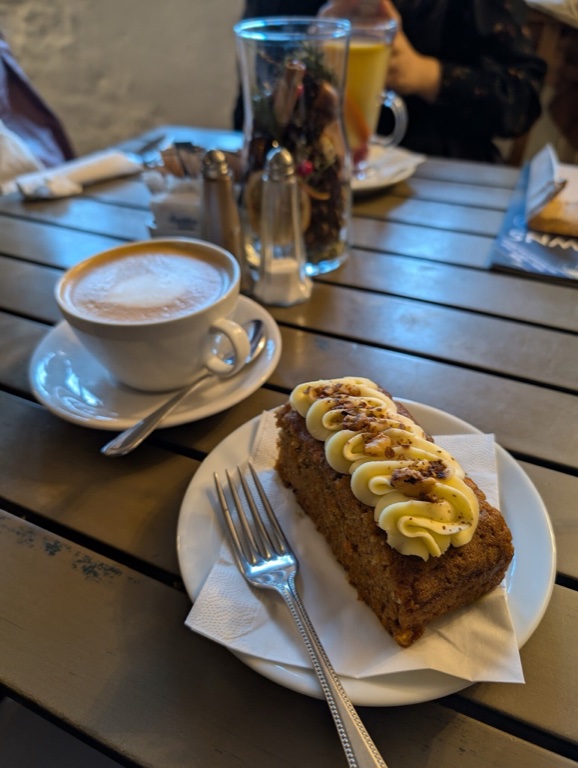
ExampleSlice of frosted cake on a plate beside a cup of coffee and a glass of iced drink on a café table.
What this alt text generator does
This alt text generator reads one image and writes the text for its alt attribute. Choose a short version of 125 characters or less, or a long description of two to four sentences for charts and detailed images. Then pick a purpose: Accessibility, SEO-friendly or Product.
Add keywords if you want. Only the ones that match what is visible are worked in, once each.
The result opens in an editable box. It never starts with "Image of" or "Picture of" and has no quotes or line breaks, so it pastes straight into your HTML or CMS. It is AI output: check it against the image and add what the page needs that the picture alone doesn't show.
Use it for one image at a time: a blog photo, a product shot, a chart or a screenshot. You can upload a file, paste from the clipboard or give an image link, and the browser shrinks large photos before they are sent, so size is rarely a problem.
Made for
- Bloggers
- Online shops
- Web developers
- SEO teams
- Accessibility reviewers
Before you use the alt text generator
A few choices up front make the result easier to use.
- Upload a JPG, PNG, WebP or HEIC file, or paste the image from your clipboard or an image link.
- Pick Short alt text for photos, icons and logos, and Long description for charts, diagrams and busy screenshots.
- Choose the purpose first: Accessibility for plain facts, SEO-friendly for searchable words, Product for shop listings.
- Type keywords only if they describe what is in the picture, because the tool leaves out any that don't match and never invents a detail to fit one.
- Set the output language when your page isn't in English.
- Read the text against the image and fix any name, number or detail that looks wrong, then press Copy.
- Add the page context the picture can't show, such as why the image sits there.
- Skip purely decorative images like dividers and use an empty alt attribute instead.
Which setting fits which image
| Image type | Length | Purpose | What the text covers |
|---|---|---|---|
| Photo in a blog post | Short | Accessibility | The subject and the scene, main point first |
| Product photo in a shop | Short | Product | Product type, color, material, angle shown |
| Image you want found in search | Short | SEO-friendly | The specific words people would search for |
| Chart or diagram | Long description | Accessibility | Main point, then text, data and layout |
| Screenshot with text | Long description | Accessibility | The visible text read out, plus positions |
| Logo or icon | Short | Accessibility | What it is and any words on it |
| Decorative divider or background | None | None | Leave the alt attribute empty |
These are starting points. Check each result against the image and your page, and edit it in the box if needed.
More tools from Img to Prompt
- Image Caption GeneratorUse this image caption generator to get 5 captions for your photo, in the tone and platform you pick. 20 free generations a day, no sign-up.
- Image DescriberUse this image describer to turn any picture into a clear written description, short or detailed. 20 free generations a day, no sign-up.
- AI Image AnalyzerThis AI image analyzer reads your image for objects, text, colors, composition and mood. 20 free generations a day, no sign-up.
- Image to PromptImage to prompt in one step: upload a picture and get text for Midjourney, Stable Diffusion, Flux, Nano Banana or GPT Image. 20 free generations a day, no sign-up.